

Settings – Company-Wide Configuration
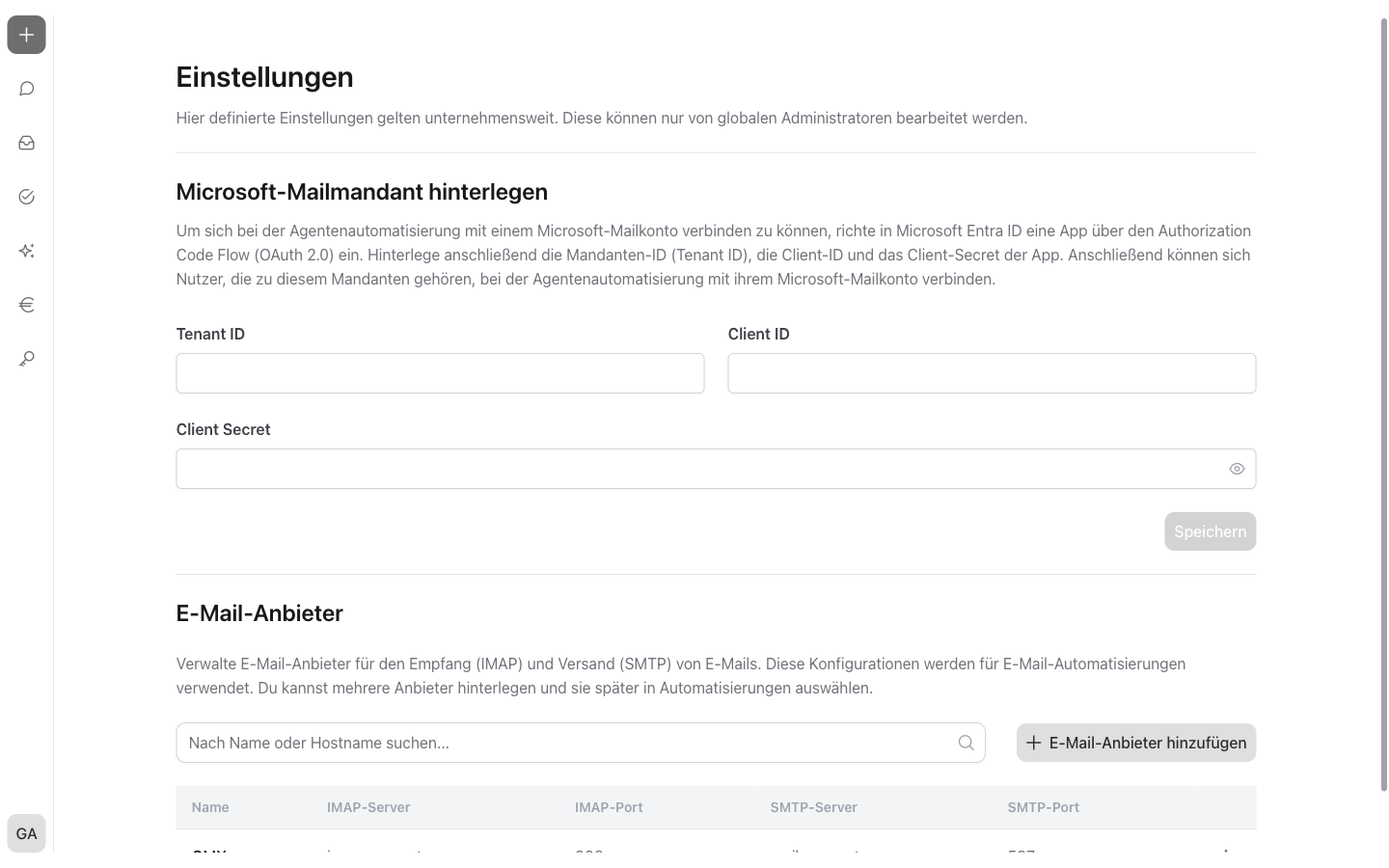
The “Settings” area bundles the company-wide configuration of incoreon: the Microsoft mail tenant for Microsoft mail accounts and the email providers for email automations. All settings apply to the entire company and can only be edited by global admins. Personal settings of your own account, by contrast, are managed in the profile (see Profile).
License
The settings are included from the Builder license onward and are only visible to global admins.
When Do I Need the Settings Area?
- Storing the Microsoft mail tenant so that users can connect their Microsoft mail accounts for email automation
- Centrally storing email providers that email automations choose from
- Maintaining several email providers in parallel – for example, for different email services besides Microsoft
- Keeping track of all configured email servers and ports
Opening the Settings
At the bottom edge of the navigation, the user menu appears after a click on the circle with your own initials. Via “Settings”  in the user menu, the settings page opens.
Note
The settings are only available in the desktop view. The “Settings” entry only appears in the user menu of global admins with a Builder license.
Storing the Microsoft Mail Tenant
To connect a Microsoft mail account with email automation, an app registration in Microsoft Entra ID – Microsoft's admin portal – is required. Via this app, incoreon signs in with Microsoft as part of the OAuth 2.0 standard sign-in procedure. The app's credentials are stored in the “Set up a Microsoft Mail account” area:
- “Tenant ID” – tenant identifier of the company in Microsoft Entra ID
- “Client ID” – identifier of the app registration
- “Client Secret” – secret credential of the app registration; the input is masked and can be shown via the

Once all fields are filled in, click “Save”. Only changed fields are saved – without a change, the “Save” button stays grayed out. As long as changes are unsaved, incoreon shows the note “Unsaved changes!”.
Warning
Without a stored Microsoft mail tenant, no Microsoft mail account can be linked with email automation. Users belonging to the tenant can only connect their Microsoft mail account after it has been stored (see Automation and Workflows).
Managing Email Providers
Email providers define via which servers emails are received and, optionally, sent. Reception runs via the IMAP standard protocol; the optional sending via SMTP. When setting up an email automation, one of the stored providers is selected. Several providers can be maintained in parallel.
The table lists all providers with “Name”, “IMAP Server”, “IMAP Port”, “SMTP Server”, and “SMTP Port”. The search field filters the list by name or hostname. If no provider exists, the note “No email providers available” appears.
Creating an Email Provider
New providers are created via “Add an email provider” in the “Create email provider” dialog. The instructions are in the guide chapter under Guide: Creating an Email Provider.
Editing an Email Provider
Via “Edit” in the three-dot menu  at the end of a row, the “Edit email provider” dialog opens. Make the adjustments and click “Save”.
Deleting an Email Provider
Via “Delete” in the three-dot menu at the end of a row, the deletion process starts. Before deleting, incoreon checks whether automations use the provider:
- If no automation uses the provider, incoreon briefly asks whether the provider should be deleted.
- If at least one automation uses the provider, incoreon shows the number of affected automations. Via “Delete providers and automations”, the provider and all associated automations are removed.
Warning
If an email provider used by automations is deleted, these automations are deleted as well. The associated automatic processes then no longer run.
Settings FAQs
Why don't I see the “Settings” entry in the user menu?
The entry only appears for global admins with a Builder license – and only in the desktop view. Anyone missing the entry should contact the company's administration (see Roles and Permissions).
What is the difference between the settings and the profile?
The settings apply company-wide and are managed by global admins. The profile contains the personal settings of your own account, e.g. personal connections and email notifications (see Profile).
Where are an email address and the password of a mailbox stored?
Not in the settings. The credentials are stored when setting up the email automation and are checked there with a connection test (see Automation and Workflows).