

Agent Components in Detail
The agent configuration is the place where an agent is tailored to its task: To this end, an agent consists of various components – basic information, language model, instruction, capabilities, knowledge, sub-agents, access rights, and automation. This chapter describes every component and how it is configured. How agents are created is described in the chapter Creating and Configuring Agents; automations are described in the chapter Automation and Workflows.
License
Configuring agents requires the Builder license as well as global administrator or group admin rights (see Roles and Permissions).
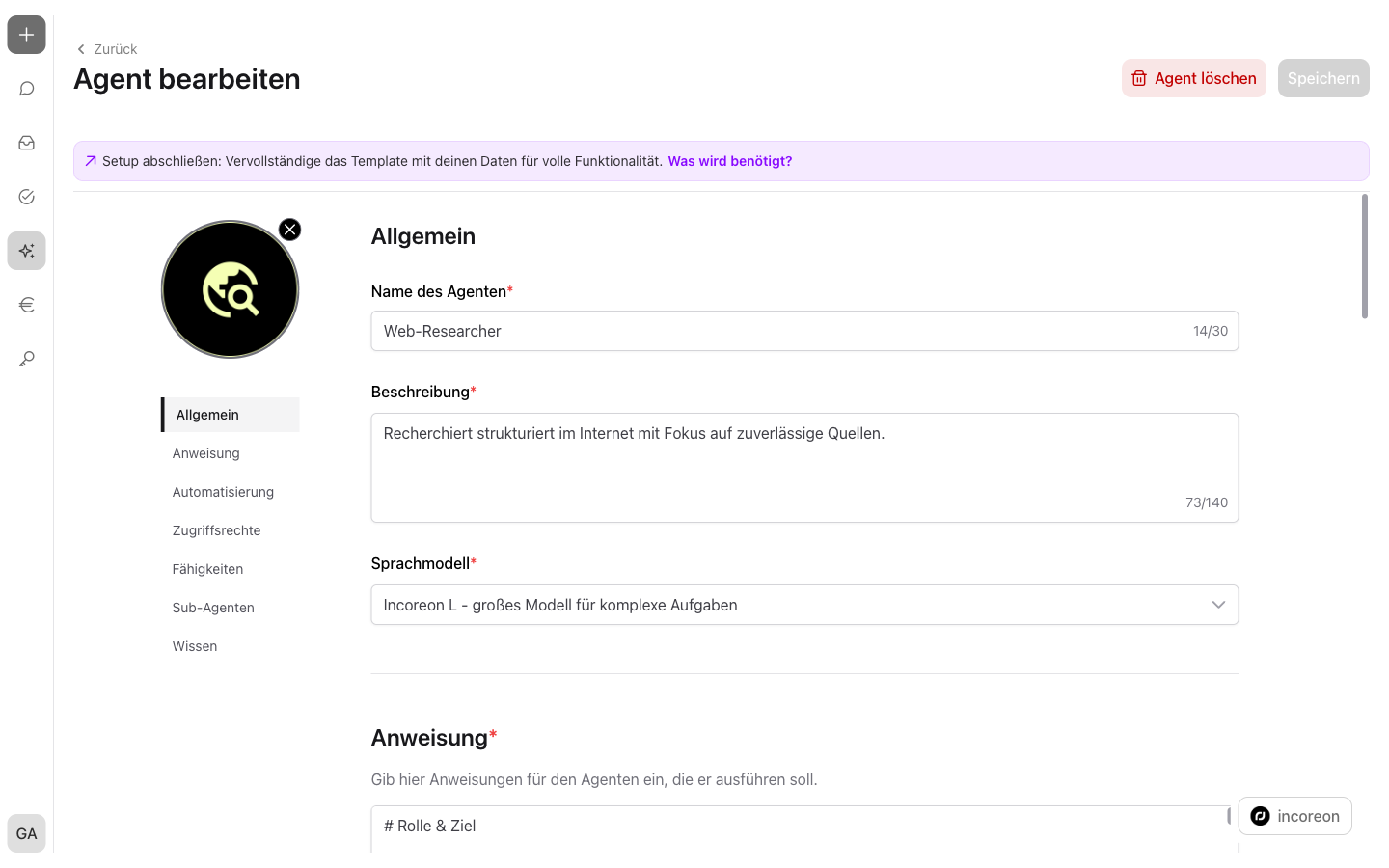
Basic Information: Name, Description, and Profile Picture
The name and the description are required entries. Both appear on the agent's card in the agents overview – the description helps to recognize the agent's purpose at a glance.
The profile picture shapes the agent's appearance in the overview and in the chat:
- Via “Choose profile picture”, an image is uploaded; via the same field, the image can be changed later.
- PNG and JPEG images of at most 2 MB are allowed.
- Via “Remove profile picture”, the image is deleted again.
Selecting the Language Model
Every agent has a language model – the software inside the agent that understands text inputs and generates answers. The language model is a required entry.
| Available language models | Area of use |
|---|---|
| Incoreon L | large model for complex tasks |
Writing the Instruction
The instruction is the permanently stored base description of an agent: Who is it, what should it do, in what frame? It applies to every conversation and is a required entry.
Recommended elements of an instruction:
- The agent's role – who it is, e.g. a specialized HR onboarding agent
- Task and responsibility – what it should do and what it is not responsible for
- Context and constraints – company background, relevant guidelines
- Rules and restrictions – e.g. on the sharing of data or on asking questions when something is unclear
- Output format – what answers should look like, e.g. bullet points or a table
- Examples – one or two sample answers for typical requests
For input, the instruction switches between two views: “Edit” for input and “Preview” for the formatted view. Tips for formulation are provided by the Guide: Writing Effective Instructions (Prompts).
Configuring Capabilities
Capabilities are functions an agent can use – e.g. internet search, calculations, or reading a mailbox. In the configuration, it is defined which capabilities the agent may access.
The System Capability
The System capability  is always active and cannot be deselected. It contains the basic functions for the collaboration in incoreon: time query and calculation, user search, creating information items and to-dos, and completing to-dos.
Predefined Capabilities
Besides the System capability, incoreon provides ten predefined capabilities:
| Capability | Description |
|---|---|
| Internet search | searches for current or general information on the internet |
| Calculator | solves demanding calculations with several factors and variables |
| Document generation | creates Word and Excel files directly in the conversation |
| Agent storage | stores data on demand and retains information across conversations (see Agent Storage and Data Integration) |
| Browser automation | operates websites automatically – fills in forms, sets filters, and retrieves filtered results |
| Microsoft Mail | reads, composes, sends, and organizes e-mails |
| Microsoft Calendar | reads, creates, edits, and manages appointments |
| Atlassian | retrieves and updates issues, projects, and pages in Atlassian products like Jira and Confluence |
| Linear | retrieves and updates issues, projects, teams, and status information in Linear |
| Slack | reads messages and threads in shared Slack channels |
Some capabilities require signing in to the respective service before first use (see Choosing the Login Mode: Shared or Personal Account).
Adding Custom Capabilities via MCP Servers
Custom capabilities are connected via MCP servers. MCP is a standardized connector through which additional functions and external systems are connected – comparable to a USB port to which further devices are attached.
A permission is required: Global admins activate the “Allow custom MCP servers” option in the user group that manages the agent (see Roles and Permissions).
In the “Add MCP” dialog, the capability is set up:
- Name and description – designation of the capability and a short description of what it can do.
- URL – address of the MCP server. Only servers via an encrypted HTTPS connection are reachable.
- Headers – additional entries for the server, e.g. access keys. Values can be encrypted; encrypted values are no longer readable afterward.
- Authentication – “No Authentication” or a sign-in via OAuth 2.0 with client ID, client secret, and further entries.
Via “Test connection”, incoreon checks whether the server is reachable before the capability is saved.
When deleting a custom capability, incoreon asks: “Once this MCP is deleted, other users can no longer use it.” With “Delete anyway”, the capability is removed; with “Keep MCP”, it remains.
Choosing the Login Mode: Shared or Personal Account
Capabilities with sign-in work on behalf of an account with the respective service, e.g. Microsoft Mail. The login mode determines which account is used:
- Shared account – one account that several persons use together. The agent uses this access for all users who chat with it.
- Personal account – every person connects their own account via their profile. The agent uses exclusively this connection (see Profile).
If a sign-in is missing or expires, incoreon prompts to connect in the chat.
Adding Knowledge
An agent's knowledge comprises files and information the agent draws on for its answers – e.g. policies, contracts, or employee data. Files are organized in knowledge groups. For matching questions, the agent searches specifically in the uploaded files.
Knowledge offers two benefits: The data stays in the company, and individual documents become a shared knowledge pool that the agent evaluates when needed.
Knowledge can be added only after the agent has been saved for the first time.
Creating Knowledge Groups
Via “New group”, the “Upload knowledge” dialog opens. In it, a knowledge group is created:
- Description – a brief statement of what the group contains, e.g. “employee data” or “policies”. The description helps the agent find the right knowledge for a question.
- Files – the group's uploaded files. 20 MB is allowed per file; PDFs and documents with at most 500 pages are processed.
- “Allow users to download files” – determines whether the using persons may download files from the group.
- “Link task” – links file uploads directly with a task. The agent can automatically analyze uploaded files, research, summarize, and store the results, e.g. “Extract the monthly leasing rate, term, and annual mileage and store the information.”
Uploaded files are processed in the background; the page can be left during processing.
Connecting Network Drives Planned
Coming soon
Network drives are a planned feature and not yet part of incoreon.
Instead of uploads, knowledge will also be connectable via network drives – e.g. a shared folder in the company. incoreon will then synchronize the files of the network drive regularly, and the agent will include them in its answers for matching questions.
Note
Knowledge is suited for documents and files. For structured data that the agent is to store and retrieve specifically, the agent storage is suited (see Agent Storage and Data Integration).
Integrating Sub-Agents
In the “Sub-Agents” area, an agent can be complemented with other agents that it brings in for subtasks. Via “Add”, the “Add sub-agents” dialog opens; only agents without own sub-agents are available for selection.
Sub-agents can be added only after the agent has been saved for the first time. How the collaboration works is described in the chapter Multi-Agent Systems and Sub-Agents.
Granting Access Rights
Access rights determine who may use an agent and who may edit it. There are two kinds:
- Usage rights – who may use the agent. Available are “Allow for all users” or “Specific users”; specific users and groups can be selected via the search field.
- Editing rights – who may edit the agent. Available are “Specific user group” or “Global administrators only”.
An agent must be assigned to at least one user, one group, or all users for use.
Warning
When the editing rights are changed, all of the agent's custom capabilities (MCP servers) are deleted. Changing the editing rights is possible only with this loss.
FAQs about Agent Components
Which format and size may a profile picture have?
PNG or JPEG images of at most 2 MB. Larger files or other formats are rejected by incoreon with a note.